How I Check AI's UI Changes Without Running My App
When AI changes my app's UI or puts up a big pull request, I don't want to check out the branch and run the app just to see if it looks right. So my UI tests take screenshots in light and dark mode and CI puts them on a page linked from the pull request. Here's how it works and how to set up your own.
When AI makes a change to Tobi’s UI, or puts up a big pull request that touches a bunch of screens, I want to see it before I merge it. Reading a SwiftUI diff doesn’t tell me if the keyboard is covering a button or if dark mode looks off, and checking out every branch to run it in the simulator gets old fast.
So now the UI tests take a screenshot of every screen they walk through, in light and dark mode, and CI publishes them to uiproof.gettobi.com. Each pull request gets its own gallery, and a comment on the pull request links to it.
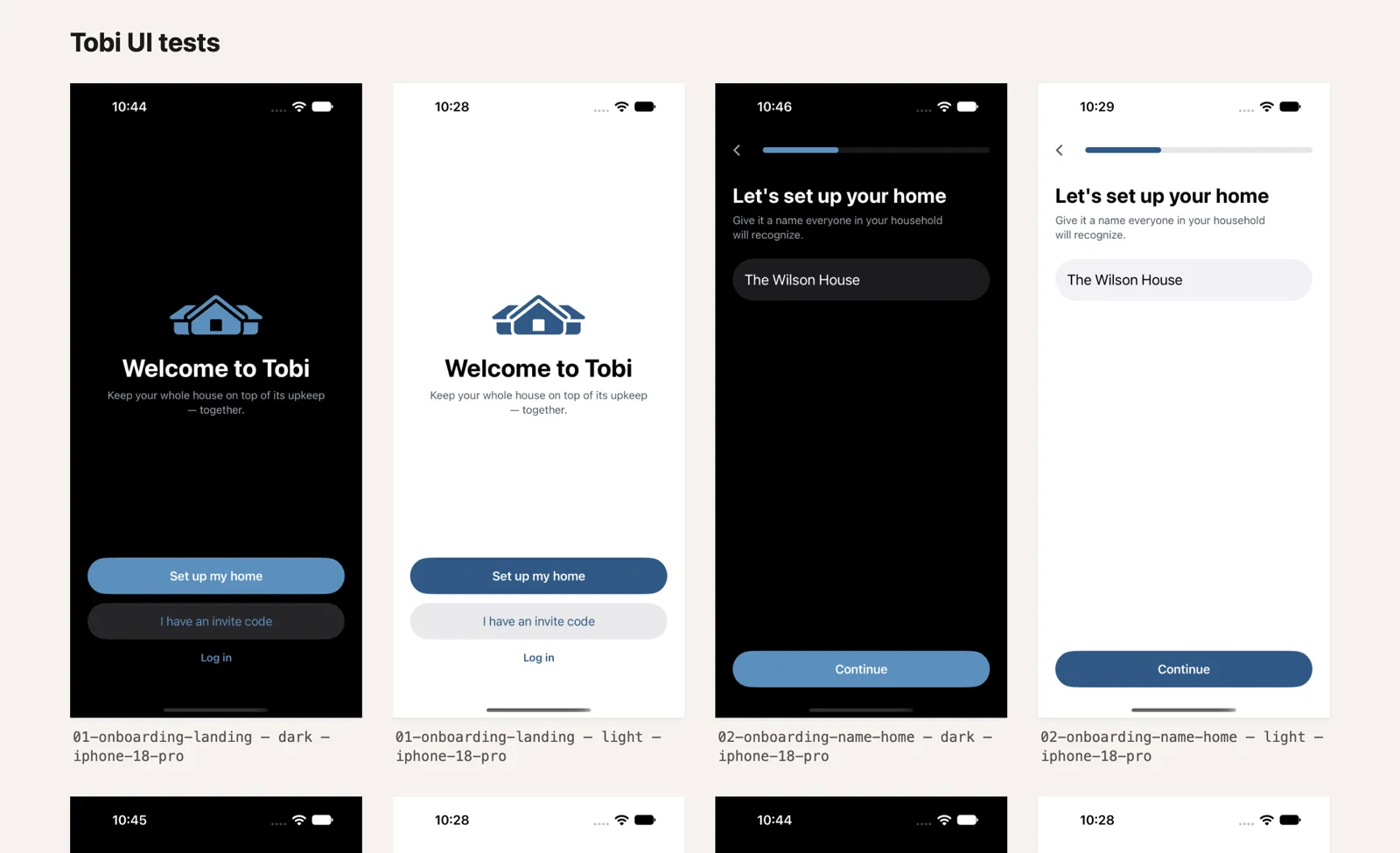
Here’s how it works.
The stack
- XCUITest drives the app and takes the screenshots
- GitHub Actions runs the tests on my self-hosted M1 Mac, then publishes from a Linux runner
- A bash script turns a folder of PNGs into a static HTML page
- A Cloudflare Worker with static assets hosts everything, deployed with Wrangler
There’s no framework or build step for the gallery itself. It’s plain HTML and the PNGs.
The full flow
The UI tests only run when something in Tobi/TobiUITests changed, since they’re the slow part of CI. The unit tests run either way.
Taking the screenshots
The UI tests launch the app with a -UITesting argument so it starts signed out, then walk through onboarding: the landing screen, naming the home, adding a first task, and so on until the app shell. At each step the test waits for the screen to show up, fills in the same sample data every time (“The Wilson House”, a furnace, “Replace air filter”), and takes a screenshot.
Before every screenshot, the test dismisses the keyboard and fails if it’s still showing, because I want the gallery to show the screen the way someone would actually see it. It also checks a few pixels near the top corners to make sure a light mode screenshot is actually light and a dark mode one is actually dark. Without that, a run where the appearance didn’t switch would publish two copies of the same screen with different labels.
Saving the screenshot happens in a small helper. It attaches the image to the test results like normal, and if a screenshot directory was passed in, it also writes a PNG there:
enum ScreenshotCapture {
  static func save(_ name: String, screenshot: XCUIScreenshot, testCase: XCTestCase) {
    let attachment = XCTAttachment(screenshot: screenshot)
    attachment.name = name
    attachment.lifetime = .keepAlways
    testCase.add(attachment)

    let dir = ProcessInfo.processInfo.environment["UITEST_SCREENSHOT_DIR"] ?? ""
    guard !dir.isEmpty else { return }

    let slug = ProcessInfo.processInfo.environment["UITEST_DEVICE_SLUG"] ?? "device"
    let fileName = "\(name)-\(slug).png"
    let url = URL(fileURLWithPath: dir).appendingPathComponent(fileName)
    do {
      try screenshot.pngRepresentation.write(to: url)
    }
    catch {
      XCTFail("Failed to write screenshot \(fileName): \(error)")
    }
  }
}
The name has the step number and the appearance in it, and the device gets added on the end, so you end up with files like 01-onboarding-landing-light-iphone-18-pro.png. The number keeps them in order, and the rest becomes the caption on the gallery page.
The one trick here is getting those environment variables into the test. xcodebuild doesn’t pass your environment through to the test runner, but anything prefixed with TEST_RUNNER_ gets passed along with the prefix stripped off. So the workflow sets TEST_RUNNER_UITEST_SCREENSHOT_DIR, and the test reads UITEST_SCREENSHOT_DIR.
To get both appearances, the workflow runs the UI tests twice on an iPhone 18 Pro simulator, switching the simulator’s appearance before each run. Here’s the loop, trimmed down:
export TEST_RUNNER_UITEST_SCREENSHOT_DIR="$GITHUB_WORKSPACE/.ui-screenshots"
export TEST_RUNNER_UITEST_DEVICE_SLUG="iphone-18-pro"

for style in light dark; do
  xcrun simctl ui "$SIM_UDID" appearance "$style"
  export TEST_RUNNER_UITEST_INTERFACE_STYLE="$style"
  xcodebuild \
    -project Tobi.xcodeproj \
    -scheme TobiUITests \
    -destination "platform=iOS Simulator,id=$SIM_UDID" \
    test-without-building
done
Building the page
scripts/build-ui-test-gallery.sh takes the folder of PNGs and writes out a gallery: the images, an index.html that lays them out in a grid, and a files.json with a list of the filenames. The captions come straight from the filenames, so 01-onboarding-landing-light-iphone-18-pro.png shows up as “01-onboarding-landing — light — iphone-18-pro”. Clicking an image opens the full-size PNG.
You’ll never look at files.json yourself, but the deploy step needs it to know which files belong to each gallery. I’ll get to why in a second.
The Mac runner uploads that folder as a GitHub Actions artifact, and a second job on a Linux runner takes it from there.
Hosting it on a Cloudflare Worker
The site is a Cloudflare Worker with no code, just static assets. Here’s the whole config:
{
  "name": "tobi-ui-proof",
  "compatibility_date": "2026-09-22",
  "workers_dev": true,
  "routes": [
    {
      "pattern": "uiproof.gettobi.com",
      "custom_domain": true,
    },
  ],
  "assets": {
    "directory": "./public",
  },
  "observability": {
    "enabled": true,
    "head_sampling_rate": 1,
  },
}
Here’s the catch. Every wrangler deploy replaces all of the assets. If I deploy a public/ folder with only the new pull request’s gallery in it, every other gallery disappears, and since they aren’t stored anywhere else, they’d be gone for good.
So before deploying, the publish script rebuilds the whole site from what’s currently live:
- Copy the new gallery into
public/pr/<n>/. - Download
galleries.jsonfrom the live site, which lists every gallery that’s up right now. - For every other gallery in that list, download its
index.html, itsfiles.json, and every PNG listed infiles.json. - Write a new
galleries.jsonand index page. - Deploy.
If any of those downloads fail, the script stops and doesn’t deploy. Deploying anyway would publish a site that’s missing that gallery, and because the live site is the only copy, it wouldn’t come back.
I learned that one the hard way. Workers redirects /pr/<n>/index.html to /pr/<n>/ with a 307, and the first version of the script treated that redirect as a failed download. It skipped every other gallery and happily deployed a site with just one in it, so the index only ever showed whichever pull request published last. Now it follows redirects, asks for the trailing-slash URL, and refuses to deploy if anything is missing.
The other problem was two pull requests publishing at the same time. Both would read the live site, neither would know about the other’s new gallery, and whichever deployed second would wipe out the first. The publish and cleanup jobs share a concurrency group, so they wait in line instead:
concurrency:
  group: tobi-ui-proof-deploy
  cancel-in-progress: false
The site keeps up to 20 galleries, newest pull requests first.
Commenting on the pull request
After deploying, an actions/github-script step leaves a comment on the pull request with the gallery link. The comment includes a hidden HTML marker, <!-- tobi-ui-proof-gallery -->, so the next run can find that comment and update it instead of adding a new one every time the tests run.
Cleaning up
When a pull request is closed or merged, a cleanup job runs the same rebuild, leaves that pull request’s gallery out, and deploys again. Galleries only stick around while the pull request is open.
Setting this up yourself
- Write screenshots to disk from your UI tests. Read a directory from an environment variable and write
screenshot.pngRepresentationthere. Put the order and the appearance in the filename so you don’t need anything else to label them. - Pass the directory in with
TEST_RUNNER_. SetTEST_RUNNER_UITEST_SCREENSHOT_DIRwhen you runxcodebuild. If you want light and dark, run the tests twice and switch the simulator withxcrun simctl uibefore each run. - Turn the folder into a page. Any script works. Write an
index.htmlfor the images and afiles.jsonthat lists them. - Host it. If your host replaces everything on each deploy like Workers static assets do, download the galleries that are already live before you deploy, and don’t deploy if any of those downloads fail. If your host lets you upload one folder at a time, you can skip that part.
- Run deploys one at a time. Put publish and cleanup in the same concurrency group so they can’t overwrite each other.
- Comment the link on the pull request, with a hidden marker so you can update the same comment.
- Delete the gallery when the pull request closes.
Wrapping up
Now when a pull request changes the UI, I can see every screen in light and dark without checking out the branch or opening Xcode. The screenshots come from the same test run that checked them, so if the keyboard was in the way or dark mode didn’t apply, the test failed and nothing got published. And since galleries get cleaned up when pull requests close, the site only ever has what’s open right now.
I'm looking for my next thing, whether that's full-time, consulting, or a long-term contract. If you're building something where the details matter, I'd like to hear about it. Send me an email.